Why is my Squarespace site not showing on Google? 6 checks
In short
A Squarespace site Google cannot find is usually held back by a setting: a free or private plan, a password, a hidden page, the wrong primary domain or no sitemap in Search Console. Still missing? The free site check comes first; a restore or redirect job is quoted in writing within one working day.
Seeing this on your own site? Send us the address for a free site check, and a written report comes back within 2 business days.
Key points
- Trial, expired and canceled Squarespace sites are not found by search engines.
- A site wide password, a page password or the Hide this page from search results box keeps pages out.
- Set your own domain as primary, or Google may list the built in squarespace.com address.
- Submit yourdomain.com/sitemap.xml in Google Search Console. Squarespace builds the file for you.
- Google says crawling can take a few days to a few weeks, and asking again does not speed it up.
On this page (9)
- Why is my Squarespace site not showing on Google?
- Check 1: is the site on a paid plan and public?
- Check 2: is a password in the way?
- Check 3: is the page hidden from search?
- Check 4: is your own domain the primary one?
- Check 5: does Google have your sitemap?
- Check 6: what does a site: search show, and have you waited long enough?
- What should you do if all six checks pass?
- Questions and answers
Why is my Squarespace site not showing on Google?
When a Squarespace site is not showing on Google, most of the time a setting is holding it back, not a ranking problem. Squarespace’s help center lists the same causes we check first: the plan, a password, a hidden page, stray noindex code and the domain. Run the six checks below in order. Each takes minutes and costs nothing.
We run them first on live sites sent to our Squarespace design service. If all six pass and the site is still missing weeks later, the work is content and SEO. Titles, headings and schema are what our SEO and AI search fixes cover.
Check 1: is the site on a paid plan and public?
Squarespace says it plainly: “Search engines won’t find trial, expired, or canceled sites.”
Then open the Site Availability panel. Squarespace’s “Is my site live?” article says the site is live when that panel is set to Public. Trial sites start private, visible only to the owner and contributors.
Check 2: is a password in the way?
A site wide password or a password on the home page keeps Google out, because Google cannot type it in.
The quick test from Squarespace’s own guide: open the site in a private browser window. If you are asked for a password, so is Google. Single pages can carry their own password too, under Page settings, General tab.
Check 3: is the page hidden from search?
Every page has an SEO tab in its settings with a box called Hide this page from search results. Squarespace says to make sure it is unchecked. Check the box on the blog page itself as well as on single pages.
Two more places hide pages without saying so:
- Code injection. Squarespace tells you to remove any noindex code from the site wide and home page code injection, and from the Advanced tab of each page.
- Paywalls. Blog, course or video pages behind a paywall are not indexed.
On WordPress it is one box: what Discourage search engines from indexing does.
Check 4: is your own domain the primary one?
If the built in sitename.squarespace.com address is still primary, that is the address search engines are given. Squarespace’s fix is to set your custom domain as primary, and “it updates in your site map”.
If Google still lists the squarespace.com address afterward, the site was most likely indexed before the change. Ask Google to index it again from Search Console. If Search Console refuses the request with Indexing request rejected, look for a noindex on the page first.
Check 5: does Google have your sitemap?
Squarespace builds the sitemap for you. It lives at yourdomain.com/sitemap.xml, and changes usually show in it within an hour, up to 24 hours. Pages hidden from search and password pages are left out of it on purpose.
To hand it to Google:
- Connect Search Console from the Analytics panel, Search keywords, then Connect. Squarespace says to wait 72 hours for the data.
- In Search Console, open Sitemaps, type the sitemap address under “Add a new sitemap” and click Submit.
- If it says “Couldn’t fetch”, Squarespace notes that can last 24 to 48 hours while Google processes it.
Once it is in, the Sitemaps report shows a status and a Last read date for each sitemap. A sitemap Google last read months ago tells you Google has not seen your newest pages through it.
Check 6: what does a site: search show, and have you waited long enough?
Search Google for site:yourdomain.com with no other words. Google’s guide uses this search to see whether your pages are indexed. Zero results means keep going down this list. Google warns that the operator “doesn’t necessarily return all the URLs that are indexed”, so use it as a yes or no, not a page count.
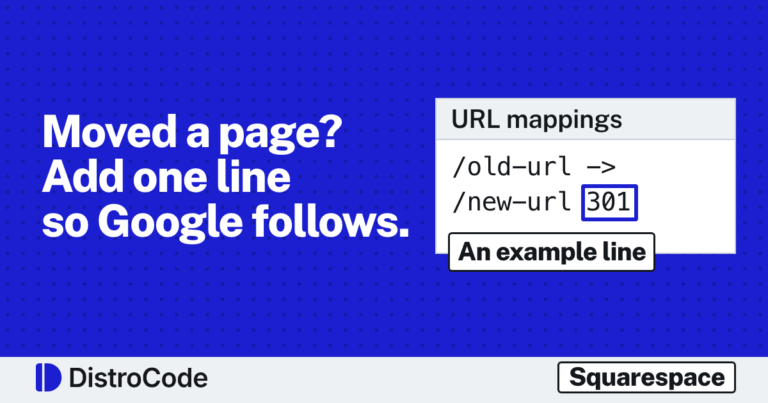
If the search finds every page except one you renamed, the fix we make is a 301 redirect in URL Mappings, as in our Squarespace 301 redirect guide.
Then the hard part: time. Google’s guide says “It can take a few weeks for Google to notice a new site”. Its recrawl page says crawling “can take anywhere from a few days to a few weeks”, and that asking for the same URL again “won’t get it crawled any faster”.
What should you do if all six checks pass?
Write down the date you submitted the sitemap and leave it alone for two weeks. Changing settings every day makes it harder to tell what worked.
On Wix, the culprit is often a switch in SEO Settings: see the Wix version of this guide. A Site History restore leaves SEO Settings as they are, so check them rather than assume they rolled back.
After that, the Page indexing report (Indexing, Pages) in Search Console tells you which addresses Google has seen and why any were left out. That report, not a guess, decides the next step. Bing keeps its own index, and Microsoft says Copilot sends web queries to it, so our three AI search checks start there.
Google’s AI Overviews link only pages it has indexed, so these six checks come first there too. We wrote up how to rank in AI Overviews and what an AI search audit should test.
Still not on Google after these steps? Send us the site address and the search it should show for. A Squarespace site gets the free site check first; a restore or redirect job is quoted in writing within one working day. Prices in US dollars; you pay a Stripe invoice.
Rather hand it over? Send us your address and we will tell you which of the six it is.
Not sure what to ask for? Ask for the free site check: send the site address and we reply in writing within 2 business days. If the site also runs WordPress, see our one-off WordPress fixes.
Where did these facts come from?
- Squarespace Help, Why doesn't my site appear in Google search results?, checked Oct 11, 2026
- Squarespace Help, Is my site live?, checked Oct 11, 2026
- Squarespace Help, View your site map, checked Oct 11, 2026
- Squarespace Help, Verifying your site with Google Search Console, checked Oct 11, 2026
- Squarespace Help, Hiding your built in domain from search engine results, checked Oct 11, 2026
- Google Search Central, Get your website on Google, checked Oct 11, 2026
- Google Search Central, Ask Google to recrawl your URLs, checked Oct 11, 2026
- Search Console Help, Page indexing report, checked Oct 11, 2026
- Search Console Help, Sitemaps report, checked Oct 10, 2026
Questions and answers
Why is my Squarespace website not showing up on Google search when it is published?
Published and public are two checks. Open the Site Availability panel and confirm it says Public, then open your site in a private browser window. If you are asked for a password, Google is asked for it too.
How long does it take for a new Squarespace site to show up on Google?
Google's own guide says it "can take a few weeks for Google to notice a new site". Connecting Search Console and submitting the sitemap helps Google find it, but Squarespace and Google both say they cannot promise a date.
Why does Google show my squarespace.com address instead of my domain?
The site was probably indexed before your own domain became primary. Set your custom domain as primary, which also updates the sitemap, then ask Google to index the site again from Search Console.
Does a site:yourdomain.com search show every page Google has?
No. Google says the site operator "doesn't necessarily return all the URLs that are indexed". Use it to see whether Google has your site at all, and the Page indexing report in Search Console for the full picture.
Still stuck? Send us the page address and what you see Want to know if the problem stops here? Ask for the free site check.
We write up one real fix or build a few times a week. Follow DistroCode on LinkedIn