WordPress Address and Site Address: the two settings that can lock you out, and the wp-config fix
In short
If you changed WordPress Address (URL) and cannot log in, the login page now sends you to the wrong address. Add WP_HOME and WP_SITEURL with your real address to wp-config.php, and you can log in again. Then correct the stored value too, because the constants only cover it. No file access? Ask your host.
Seeing this on your own site? Send us the address for a free site check, and a written report comes back within 2 business days.
Key points
- In our lab, a wrong WordPress Address locked us out of wp-admin. A wrong Site Address left wp-admin working but sent 16 front page links to a dead domain.
- Two define() lines in wp-config.php override both fields and got us back in on the next page load.
- The constants do not change the database. Remove them and the lockout comes back.
On this page (8)
- What do the WordPress Address and Site Address settings do?
- Why can’t you log in after changing the site URL?
- How do you get back in with wp-config.php?
- Why does the wp-config fix not finish the job?
- Why are the address fields greyed out now?
- How do you fix the stored value for good?
- What should you check before anyone edits these fields?
- Questions and answers
What do the WordPress Address and Site Address settings do?
When you change the WordPress site URL, you are editing two settings under Settings, General. The WordPress handbook says they “control where WordPress is located” and are “used throughout the WordPress code”.
Site Address (URL) is the address people type to reach your site. WordPress Address (URL) is where the core files are, such as wp-admin and wp-includes. On most sites the two are the same. On our WordPress maintenance plan, we change them on a copy first.
The handbook describes how people get stuck. They “change one or both and discover that their site no longer works properly”, which can leave them “with no easily discoverable way to correct the problem.”
Why can’t you log in after changing the site URL?
Because the login page now lives at the address you typed. On a WordPress 7.1 copy of our test store, on 11 Oct 2026, we typed an address that does not exist into each field in turn, the way a typo would.
Wrong Site Address. Save worked and the dashboard stayed open. The home page still loaded, but 16 of its links (Shop, Cart, Checkout, the posts) now pointed at the dead domain.
Wrong WordPress Address. This is the lockout. The moment we clicked Save Changes, Chrome showed “This site can’t be reached” with DNS_PROBE_FINISHED_NXDOMAIN. Opening /wp-admin/ redirected to the login page on the dead domain, and the login form on the real address posted to the dead domain too. There was no screen left to undo it from.
How do you get back in with wp-config.php?
Add two lines to wp-config.php. It sits in your WordPress folder, or one folder above it. Put them above the line that says “That’s all, stop editing”:
define( 'WP_HOME', 'https://example.com' );
define( 'WP_SITEURL', 'https://example.com' );
Use your own address. The handbook says it “should include the https:// part and should not have a slash / at the end”. WP_HOME sets the Site Address and WP_SITEURL the WordPress Address. Both override what the database holds.
Open it in your host’s file manager or over SFTP, and keep a copy first.
On our lab, the next request to /wp-admin/ redirected to the right login page, the form posted to the right address, and we logged in.
Why does the wp-config fix not finish the job?
The constants hide the problem rather than repair it. The handbook says: “This is not necessarily the best fix, it’s just hard-coding the values into the site itself.”
After we logged back in, the siteurl row in the database still held the dead address. The handbook’s wp-config.php page warns about this: the constant “will not change the database stored value”, and the URL “will revert to the old database value if this line is ever removed”.
We removed the two lines to test it. The next visit to /wp-admin/ sent us straight back to the dead domain.
On a locked out site, we use the two lines to get in, then correct the siteurl and home rows so the site stops leaning on them.
A move to a new domain changes these two rows and every address that themes and plugins store. Our website migration service changes them all, then checks the settings pages.
Why are the address fields greyed out now?
With WP_HOME and WP_SITEURL defined, Settings, General shows both fields greyed out with your wp-config values in them. WordPress’s documentation for that screen says you “will not be able to make changes to it from the WordPress administration screen”.
Some setups define them for you. The WordPress Playground we test on does, so its fields were greyed out from the start.
How do you fix the stored value for good?
Pick another method from the same handbook section, then decide whether the constants stay:
- phpMyAdmin. Back up the database first. In the wp_options table, edit the siteurl and home rows. Your table prefix may not be wp_.
- RELOCATE. Add
define('RELOCATE',true);to wp-config.php and load wp-login.php at the correct address. WordPress then saves the address you used as siteurl. Remove the line straight after: the handbook says leaving it in place “is insecure”, because in some setups it lets an attacker change your site URL. - functions.php. Two update_option() lines in the active theme’s functions.php. Load the login or admin page “a couple of times”, then remove them. The handbook says: “Do not leave this code in the functions.php file.”
On multisite, the handbook says to edit the database by hand.
What should you check before anyone edits these fields?
Check that you, or your host, can open wp-config.php today. That file is the way back.
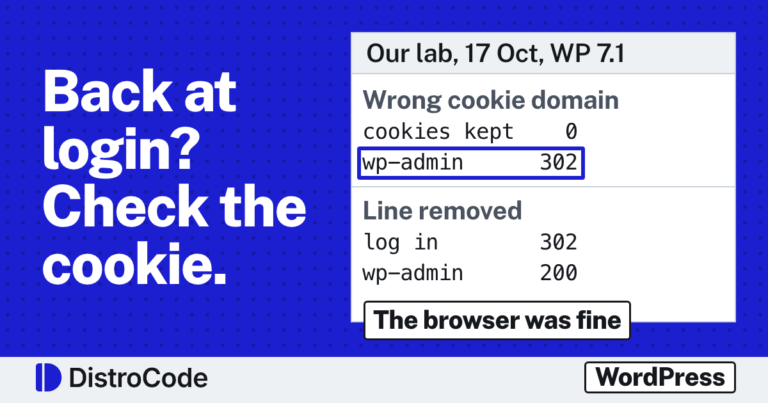
Password accepted, but you land back on the login page each time? That is a cookie going to the wrong host name, covered in our post on the WordPress login redirect loop.
If the browser says “redirected you too many times” instead of a dead domain, the address is not the only suspect: four redirect loops we reproduced and what fixed each shows how to read the Location lines.
Back in, but every admin screen says “Sorry, you are not allowed to access this page”? That is not the address. After a move it usually means the table prefix changed and your role rows kept the old one: the table prefix fix for that message has the two SQL updates.
Nobody on your team typed the new address? Follow the first hour steps for a hacked WordPress site.
If your site is locked out now, tell us the address you typed and we will reply with the steps for your host.
Not sure what is wrong yet? Ask for the free site check: send the site address and we reply in writing within 2 business days. If you already know what to fix, the one-off fixes are listed here.
Where did these facts come from?
- WordPress Advanced Administration, Migrating WordPress, Changing The Site URL, checked Oct 11, 2026
- WordPress Advanced Administration, wp-config.php, WP_SITEURL and Blog address (URL), checked Oct 11, 2026
- WordPress Advanced Administration, Hardening WordPress, Securing wp-config.php, checked Oct 11, 2026
- WordPress.org, Settings General screen, checked Oct 11, 2026
Questions and answers
How do I change the WordPress Address (URL) without wp-admin?
The WordPress handbook gives four ways. Add WP_HOME and WP_SITEURL to wp-config.php, add two update_option() lines to the theme's functions.php for one page load, use the RELOCATE constant, or edit the siteurl and home rows in the wp_options table with phpMyAdmin. We tested the wp-config fix on our lab. The other three are the handbook's steps.
Why is the WordPress Address (URL) field greyed out?
WP_SITEURL or WP_HOME is defined in wp-config.php. WordPress's Settings General documentation says the field then shows that value and "you will not be able to make changes to it from the WordPress administration screen".
Where are the site URL settings stored in the database?
In the wp_options table, in the rows named siteurl (WordPress Address) and home (Site Address). The table prefix may differ from wp_. The handbook says to back up the database before you edit either row.
Should the address end with a slash or use https?
The handbook says both settings "should include the https:// part and should not have a slash / at the end". Only use https once the site has a working certificate.
Still stuck? Send us the page address and what you see Want to know if the problem stops here? Ask for the free site check.
We write up one real fix or build a few times a week. Follow DistroCode on LinkedIn