WordPress update checklist: 7 checks before you click Update
In short
Before you update WordPress, run it on a copy, take a backup you have restored before, note the PHP memory limit, confirm you can reach your files, and list which plugins update themselves. Then test the home page logged out, a post save and a guest order; each of those caught a real fault in our 13 Oct 2026 lab.
Seeing this on your own site? Send us the address for a free site check, and a written report comes back within 2 business days.
Key points
- Run the update on a copy of the site first, with a backup you know how to restore.
- In our lab visitors got 128 MB of PHP memory while the dashboard got 256 MB, so the admin side can look fine while the front end fails.
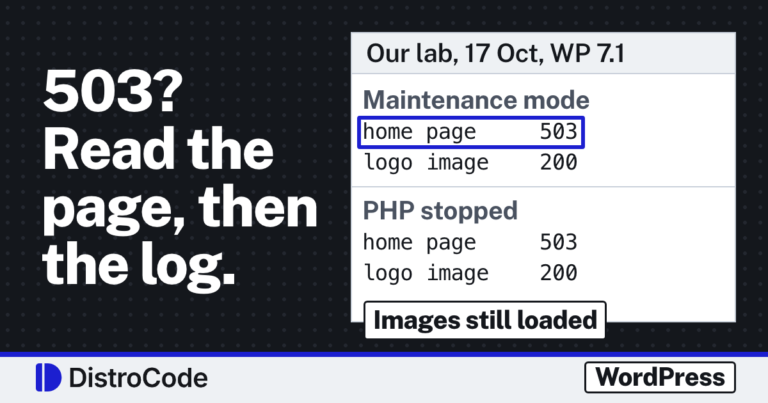
- A stuck update leaves a .maintenance file. In our lab the login page returned 503 too, so file access is your only way back in.
- WordPress keeps no record of who turned on a plugin's auto-updates, or when.
- One plugin printing a single line of HTML made every save say "Updating failed", and the posts saved anyway.
On this page (12)
- What should you check before you update WordPress?
- 1. Do you have a backup you know how to restore?
- 2. What is your PHP memory limit?
- 3. Can you reach your files without logging in?
- 4. Which plugins update themselves?
- 5. Does the home page work logged out?
- 6. Can you still save a post?
- 7. Does a guest order from another state reach Orders?
- What order should you run the checks in?
- When is this checklist not enough?
- What should you do today?
- Questions and answers
What should you check before you update WordPress?
A WordPress update checklist is short: a copy, a backup, three numbers or settings to write down, and three tests to run after. The seven checks below come from our own lab. On 13 Oct 2026 we rebuilt five faults on WordPress 7.1.3 test sites, and six of these checks map to something we watched break.
Run the update on a copy of the site first. Every check below assumes you have one.
This is the same routine we run on sites under our WordPress care plan, where updates are tested on a copy before they reach the live site.
1. Do you have a backup you know how to restore?
A backup only counts if you have restored it once. Take a fresh one of the files and the database right before the update, and know where it is stored and how long a restore takes on your host.
This is the one check that is method, not a fault we rebuilt. It is also the one that turns every other failure on this list into an hour’s work instead of a bad week.
2. What is your PHP memory limit?
Write it down before you update. Open Tools, Site Health, Info, Server, and note the PHP memory limit.
WordPress gives the dashboard more memory than the public pages. In our lab the front page ran on 128 MB and the dashboard on 256 MB. When a plugin pushed memory use past the lower number, visitors got the critical error and the admin side kept working. We tell the whole run in why WordPress runs out of memory, and why raising the limit can hide it.
3. Can you reach your files without logging in?
Make sure you can, by SFTP or the host’s file manager. Test the login before you need it.
An update that stops halfway leaves a file called .maintenance in the folder with wp-config.php. In our lab the front end, /wp-admin/, /wp-login.php and the REST API all returned 503 while it was there. You cannot log in to fix it. You delete the file, and for that you need file access. The full test is in why WordPress gets stuck in maintenance mode.
4. Which plugins update themselves?
Open Plugins and look at the Automatic Updates column. Note every plugin that says auto-updates are on.
WordPress keeps no record of who turned them on, or when. In our lab one click changed one database row, the auto_update_plugins option, which stores the plugin and nothing else. If you update by hand while some plugins also update on their own, you can’t tell which change broke the site. We traced it in who turned on WordPress plugin auto-updates.
5. Does the home page work logged out?
Check it right after the update, in a private window. Being logged in is not a test.
This is check 2 seen from the other side. The dashboard can load fine while visitors get “There has been a critical error on this website.” If you only look at wp-admin after an update, you will miss it.
6. Can you still save a post?
Open any post in the editor, change a word and save it. Read the notice that comes back.
This is the check people skip, and the one that surprised us. A plugin printing a single line of HTML made every save show “Updating failed. The response is not a valid JSON response.” Every one of those failed saves had written the post. Editors then save again and again, or give up on a change that was already live. The lab run is in what “not a valid JSON response” means in WordPress.
7. Does a guest order from another state reach Orders?
On a WooCommerce store, place a test guest order from an address outside your home state, then open Orders and find it.
In our lab the store shipped only to its home state of Michigan, at $7.50. A guest from Columbus, Ohio saw no shipping options and could not place the order. Nothing under Orders told us a sale was lost, because no order was ever made. We walk through it in WooCommerce “no shipping options found” and the sale you never see.
What order should you run the checks in?
Checks 1 to 4 go before you click Update. Checks 5 to 7 go right after, on the copy first and then again on the live site.
Before means a backup, a number, a login and a list. After means three tests a visitor or buyer would run without meaning to: load the home page, save a post, place an order. Together they take a few minutes, and they catch the faults that otherwise reach you through a customer email. If an update has already broken the site, what the screen tells you broke is the place to start.
When is this checklist not enough?
When the update is a major version of WordPress, PHP or WooCommerce, or when a plugin’s changelog mentions database changes. Then a copy of the site is not optional, and a few test pages will not catch it.
WordPress’s own Updating WordPress guide starts with a backup too. The checks above add what the lab taught us to look for after the update has run.
What should you do today?
Open Tools, Site Health, Info, Server and write down your PHP memory limit. Then open Plugins and count how many update on their own. Those two notes take five minutes and answer half this list before your next update.
If you’d rather someone else ran it, send us your site address for a free site check. Within 2 business days you get a written report: what is slow or broken, why, and what it takes to fix it. Ask for the free site check. We post a site fix a day on DistroCode’s LinkedIn Page.
Not sure what is wrong yet? Ask for the free site check: send the site address and we reply in writing within 2 business days. If you already know what to fix, the one-off fixes are listed here.
Where did these facts come from?
- DistroCode lab, WordPress memory exhausted (128 MB front end, 256 MB admin), checked Oct 13, 2026
- DistroCode lab, WordPress stuck in maintenance mode (.maintenance and 503), checked Oct 13, 2026
- DistroCode lab, WordPress plugin auto-updates (auto_update_plugins option), checked Oct 13, 2026
- DistroCode lab, WordPress not a valid JSON response (saves that wrote the post), checked Oct 13, 2026
- DistroCode lab, WooCommerce no shipping options found (out of state guest), checked Oct 13, 2026
- WordPress.org, Updating WordPress, checked Oct 15, 2026
Questions and answers
What should I do before updating WordPress?
Take a backup you have restored at least once, and run the update on a staging copy first. Then note the PHP memory limit, check you can reach the files by SFTP or the host's file manager, and see which plugins update on their own.
Why does my WordPress dashboard work but the site shows a critical error?
WordPress gives the admin side more memory than the front end. In our lab the front page ran on 128 MB and failed, while wp-admin ran on 256 MB and loaded. Always check the home page logged out after an update.
What if an update leaves my site in maintenance mode?
Delete the .maintenance file in the folder that holds wp-config.php. In our lab the front end, /wp-admin/, /wp-login.php and the REST API all returned 503 until that file was gone, so you need SFTP or a file manager to do it.
How do I test a WooCommerce store after an update?
Place a guest order from an address outside your home state and confirm it reaches Orders. In our lab a buyer from Ohio could not check out, and nothing under Orders showed the lost sale.
Rather hand this to us? See the WordPress maintenance plan Want to know if the problem stops here? Ask for the free site check.
We write up one real fix or build a few times a week on LinkedIn. Follow DistroCode there: linkedin.com/company/distrocode