WooCommerce coupon not working: the message tells you which setting
In short
A WooCommerce coupon that will not apply is almost always blocked by a rule on the coupon: an expiry date, a minimum spend, a product list, a usage limit or an allowed email. In our 18 Oct 2026 lab store, each rule gave its own error line, word for word the same on the block cart and the classic cart.
Seeing this on your own site? Send us the address for a free site check, and a written report comes back within 2 business days.
Key points
- Each coupon restriction prints its own sentence. "Has expired", "minimum spend", "not applicable to selected products", "usage limit" and "valid email at checkout" each point to one setting.
- The message names the cause, not the tab. Expiry sits on the General tab, the spend, product and email rules on Usage restriction, the per-user count on Usage limits.
- In WooCommerce 11.2.1 the error text was identical on the Cart block and the classic cart. Only the success line differed.
- With "Enable the use of coupon codes" switched off, the coupon box vanished from both carts and the buyer saw no error at all.
- The error shows the code in lower case even when the buyer typed capitals. That is normal and not the cause.
On this page (10)
- Why is my WooCommerce coupon not working?
- How did we test it?
- What does each coupon error mean?
- Does the block cart show different errors from the classic cart?
- Why does the error show the code in lower case?
- Why is there no coupon box at all?
- How do you fix a WooCommerce coupon that will not apply?
- What did we not test?
- Is a coupon still refusing your buyers?
- Questions and answers
A buyer types your code, presses Apply and gets a red line instead of a discount. When a WooCommerce coupon is not working, that red line is the best clue you have. Each restriction on a coupon prints its own sentence, so the message tells you which setting to open.
Why is my WooCommerce coupon not working?
Almost always because a setting on the coupon rules out this cart, this buyer or today’s date. Before it gives a discount, WooCommerce checks the expiry date, the minimum spend, the products, the usage limits and the allowed emails. The first rule that fails stops the coupon and prints its message.
The catch is that the message names the cause, not the place to fix it. “Usage limit” does not tell you it lives on the Usage limits tab and not under Usage restriction. The table further down maps one to the other.
Coupon and checkout faults like this one are part of our WooCommerce store fixes.
If the coupon applies and the order then stalls at payment, that is a different fault. We traced it in why a WooCommerce checkout shows no payment methods.
How did we test it?
On 18 Oct 2026 we ran WordPress 7.1.2 on PHP 8.4.26 and Apache, with WooCommerce 11.2.1 and the Twenty Twenty-Five theme, in a Docker test store. It sold Product A at $20 and Product B at $30. Every coupon was a $5 fixed cart discount.
A logged-in test customer put Product A alone in the cart, $20.00, and applied each code. A script started a fresh cart for every case, typed the code, pressed Apply and read the message.
We ran every case on two carts: the default Cart page, which uses the Cart block, and the same page with its content swapped for the classic [woocommerce_cart] shortcode. One trap on the way: a separate classic cart page did not work, because the coupon form posts to whichever page is set as the Cart page.
What does each coupon error mean?
Here is every line the buyer saw, copied from the lab, next to the setting that caused it.
| The buyer sees | The setting behind it | Tab on the coupon |
|---|---|---|
| Coupon “expired” has expired. | Coupon expiry date set to 17 Oct, the day before | General |
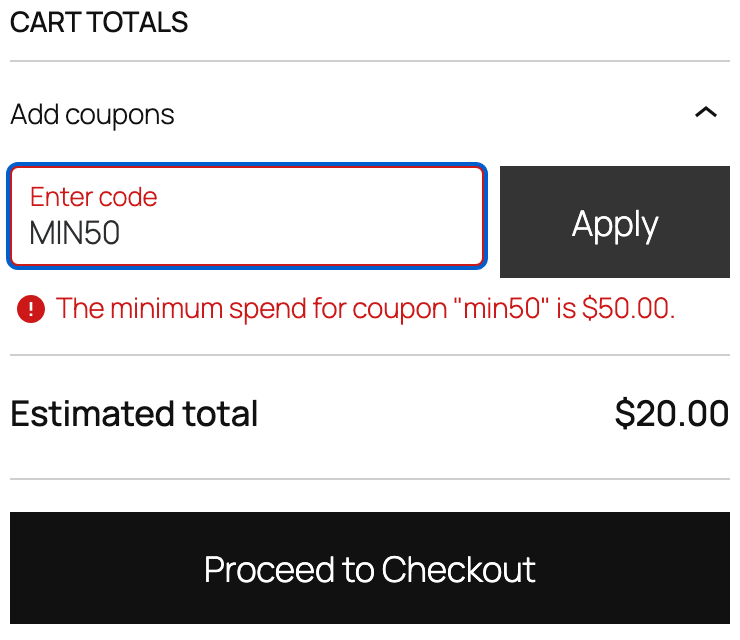
| The minimum spend for coupon “min50” is $50.00. | Minimum spend 50, cart at $20 | Usage restriction |
| Sorry, coupon “onlyb” is not applicable to selected products. | Products set to Product B, cart held only A | Usage restriction |
| Usage limit for coupon “once” has been reached. | Usage limit per user 1, already used once by this buyer | Usage limits |
| Please enter a valid email at checkout to use coupon code “emailonly”. | Allowed emails set to a different address | Usage restriction |
| Coupon “nosuch” cannot be applied because it does not exist. | No coupon with that code | None |
A few notes on reading them. “Not applicable to selected products” can also come from the Exclude products and category fields, which sit next to Products on the same tab. WooCommerce’s source uses one usage limit error for the per-user limit and the coupon’s overall limit, so check both fields on Usage limits. We tested only the per-user one.
The email line is the odd one. Our buyer was logged in, with a billing email already saved, and the cart still asked for “a valid email at checkout”. It means the email on file is not on the coupon’s list.
Does the block cart show different errors from the classic cart?
No. In WooCommerce 11.2.1 all six error lines were word for word the same on both carts. We ran the block cart through the whole list twice and the classic cart three times.
Where the line shows does differ. On the Cart block it appears in red with an icon under the code box, inside the “Add coupons” panel. On the classic cart it is a red line under the Apply coupon button. Both outline the field in red and leave the total alone.
The success line is the one that changes. A coupon with no restrictions took the total from $20.00 to $15.00 on both. The block cart said “Coupon code “PLAIN” has been applied to your cart.” The classic cart said “Coupon code applied successfully.”
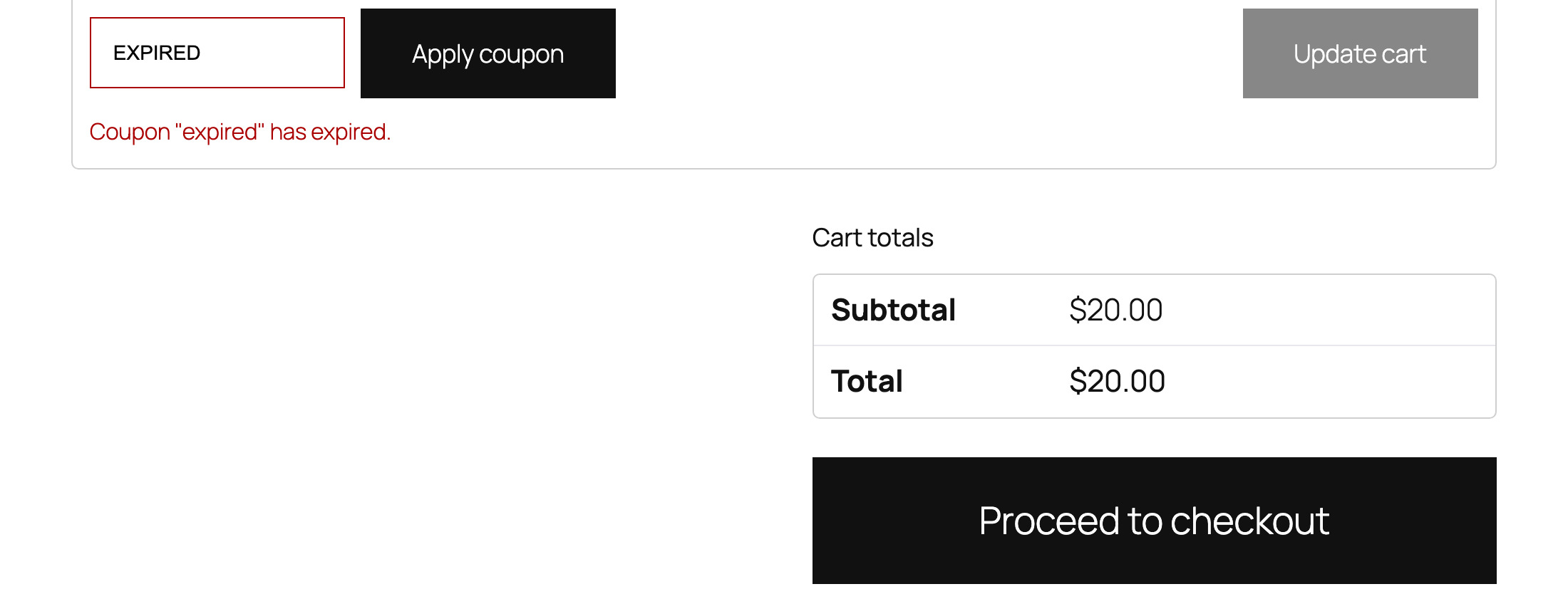
Why does the error show the code in lower case?
WooCommerce stores coupon codes in lower case. Our buyer typed MIN50 and the message said “min50”. The WooCommerce docs say codes are not case sensitive, so capitals are never the reason a coupon fails.
Why is there no coupon box at all?
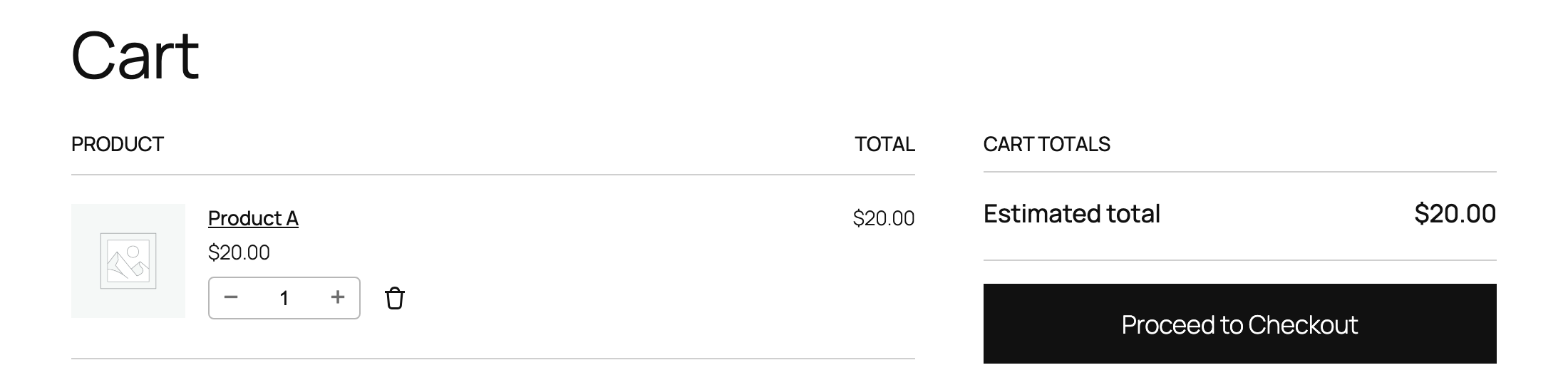
Coupons are switched off for the whole store. We unticked “Enable the use of coupon codes” under WooCommerce, Settings, General. The “Add coupons” panel vanished from the Cart block and the code field vanished from the classic cart.
The buyer saw no error, just nowhere to type a code. The coupons themselves stayed saved. Ticking the box again and reloading the cart brought the field back.
How do you fix a WooCommerce coupon that will not apply?
- Get the exact red line the buyer saw. A screenshot is best.
- Open the coupon and go to the tab in the table above.
- “Has expired”: move or clear the expiry date. WooCommerce’s docs say “Coupons expire/cannot be used on the date that is set.”
- “Minimum spend”: lower it, or put the threshold in the offer so buyers know it before they reach the cart.
- “Not applicable to selected products”: add the product, or clear the Products, Exclude products and category fields.
- “Usage limit”: raise or clear Usage limit per user and Usage limit per coupon.
- “Valid email at checkout”: correct the Allowed emails list, or clear it.
- “Does not exist”: copy the code from the coupon list and send buyers exactly that.
Then repeat the same cart with the same code. The red line should go, and a coupon row with the discount should appear in the totals.
When a store owner brings us a coupon that keeps failing, we rebuild the buyer’s cart on a copy of the store, read the line WooCommerce prints, and change the one setting it points to.
What did we not test?
- Applying a coupon on the checkout page. The block checkout runs the same rules, but we did not run it.
- Coupons with several restrictions at once, “Individual use only”, free shipping and category coupons.
- Caching plugins or a CDN serving a cached cart.
- Other WooCommerce versions, or themes with their own cart template. The wording above is from 11.2.1.
- One early classic cart run accepted the per-user coupon once. We could not repeat it in six later runs and did not find the cause, so if a per-user limit seems to let a buyer through, test it a second time.
Is a coupon still refusing your buyers?
Send us the exact line your cart shows, and we will tell you which setting it points to.
Want the whole store looked at? Send your site address for the free site check, and a written reply comes within 2 business days.
Where did these facts come from?
- DistroCode lab, WooCommerce 11.2.1 on WordPress 7.1.2, PHP 8.4.26 on Apache, theme Twenty Twenty-Five (18 Oct 2026), five restricted coupons and one missing code applied to a $20.00 cart on the Cart block and on the classic cart, then coupons switched off, checked Oct 18, 2026
- WooCommerce docs, Managing Coupons in WooCommerce (Enable the use of coupon codes, expiry date, usage restrictions and limits, codes not case sensitive), checked Oct 18, 2026
- WooCommerce source, class-wc-coupon.php (the error strings for expired, minimum spend, usage limit, allowed emails and a missing coupon), checked Oct 18, 2026
- WooCommerce source, class-wc-discounts.php (the "not applicable to selected products" check; one usage limit error for both the overall and the per-user limit), checked Oct 18, 2026
Questions and answers
Are WooCommerce coupon codes case sensitive?
No. WooCommerce's coupon docs say "SAVE10" and "save10" both work. In our lab the buyer typed MIN50 and the error line said "min50", so a lower case code in the message is not a sign the buyer typed it wrong.
Why does a coupon say "Please enter a valid email at checkout" on the cart page?
The coupon has an Allowed emails list on its Usage restriction tab. In our lab the buyer was logged in with a billing email that was not on that list, and the cart showed this line straight away. Correct the list or clear it.
Why is there no coupon box on my WooCommerce cart?
In our lab the box disappeared when "Enable the use of coupon codes" was unticked under WooCommerce, Settings, General. The buyer saw no error, just no field. Ticking it again and reloading the cart brought the field back.
Does the Cart block show different coupon errors from the classic cart?
Not in WooCommerce 11.2.1. All six error lines we produced were word for word the same on both. The success line was different, and the error sat in a different spot on the page.
Still stuck? Send us the page address and what you see Want to know if the problem stops here? Ask for the free site check.
We write up one real fix or build a few times a week. Follow DistroCode on LinkedIn